Upgrade to Fusion part 2: Making the move
Introduction
The dbt Fusion Engine represents the next evolution of data transformation. dbt has been rebuilt from the ground up but at its most basic, Fusion is a new version, and moving to it is the same as upgrading between dbt Core versions in the dbt platform. Once your project is Fusion ready, it's only a matter of pulling a few levers to make the move, but you have some flexibility in how you do so, especially in your development environments.
Fusion on the dbt platform is currently in Private preview. Enabling it for your account depends on your plan:
- Enteprise and Enterprise+ plans: Contact your account manager to enable Fusion for your environment.
- Developer and Starter plans: Complete the steps in the Part 1: Prepare for upgrade guide to become Fusion eligible and it will be enabled for your account automatically.
Prerequisites
Before upgrading your development environment, confirm:
- Your project is on the
Latestrelease track (completed in Part 1: Prepare for upgrade) - Your project must be using a supported adapter and auth method.
- You have a developer license in dbt platform
- Fusion has been enabled for your account
- You have appropriate permissions to modify environments (see Assign upgrade access if restricted)
Upgrade your development environment
With your project prepared and tested on the Latest release track, you're ready to upgrade your development environment to Fusion. The dbt platform provides a guided upgrade assistant that walks you through the process and helps validate your project is Fusion ready.
Always upgrade your development environment first before moving to production. This lets you and your team test Fusion in a safe environment and address any issues before they affect production workflows.
Assign upgrade access (optional)
By default, the Fusion upgrade assistant is visible to all users, but account admins can restrict access using the Fusion admin permission set
To limit access to the upgrade workflow:
- Navigate to Account settings in dbt platform
- Select Groups and choose the group to grant access
- Click Edit and scroll to Access and permissions
- Click Add permission and select Fusion admin from the dropdown
- Select the project(s) users should access
- Click Save
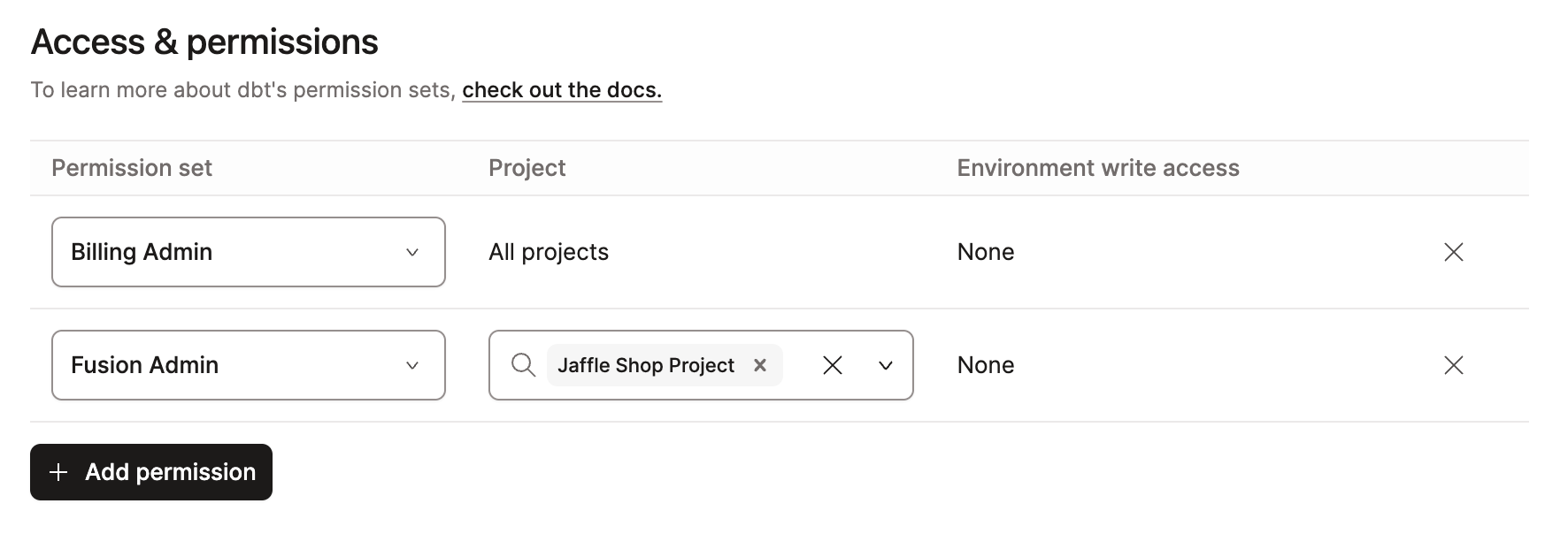 Assign Fusion admin permissions to groups
For more details on access control, see Assign access to upgrade.
Step 1: Start the upgrade assistant
Launch the Fusion upgrade workflow from your project:
- Log into dbt platform and navigate to your project
- From the project homepage or sidebar, click Start Fusion upgrade or Get started
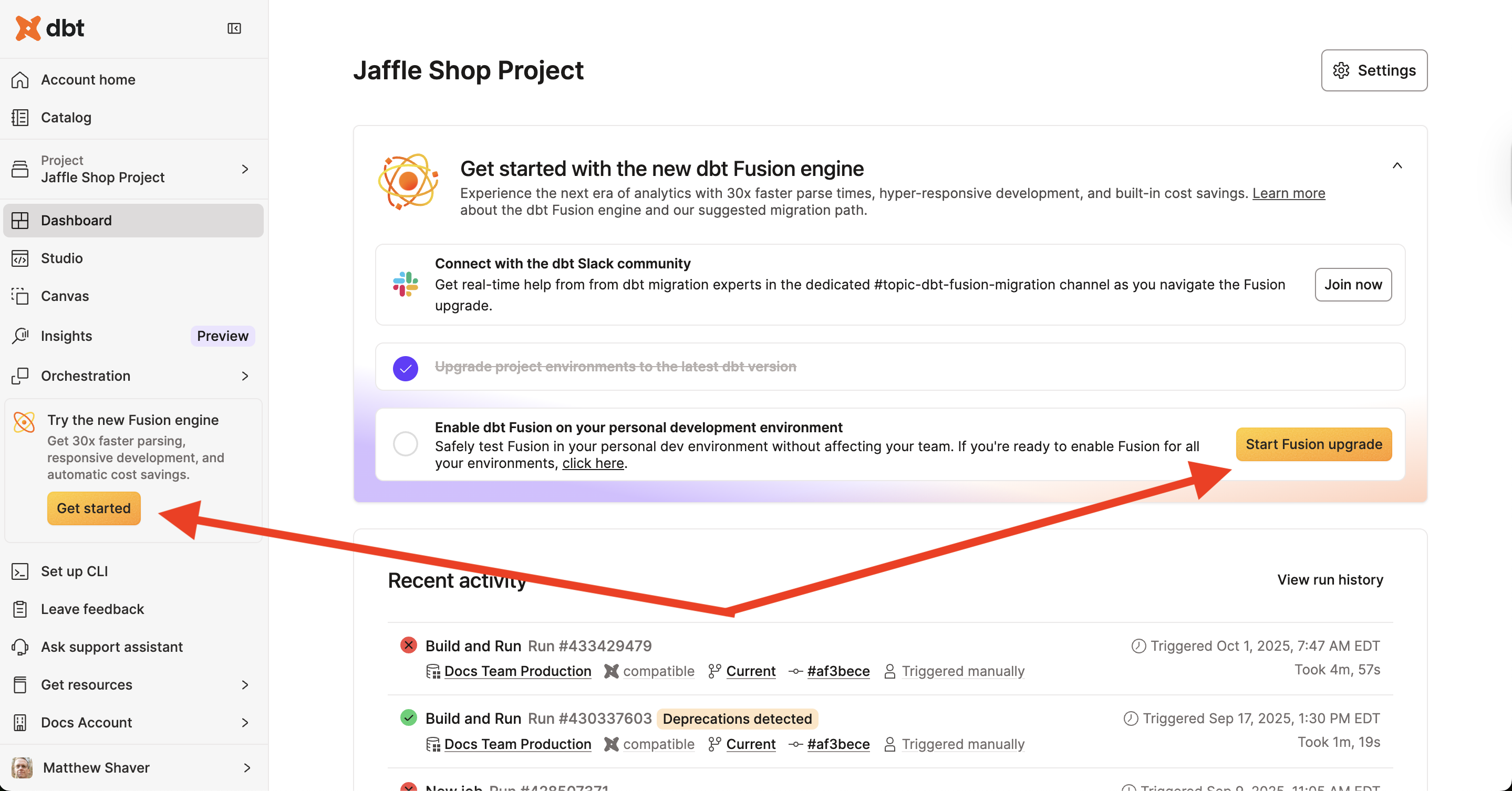 Start the Fusion upgrade from the project homepage
You'll be redirected to the Studio IDE with the upgrade assistant visible at the top.
Step 2: Check for deprecation warnings
Even if you resolved deprecations in Part 1, run a final check to ensure nothing was missed:
- At the top of the Studio IDE, click Check deprecation warnings
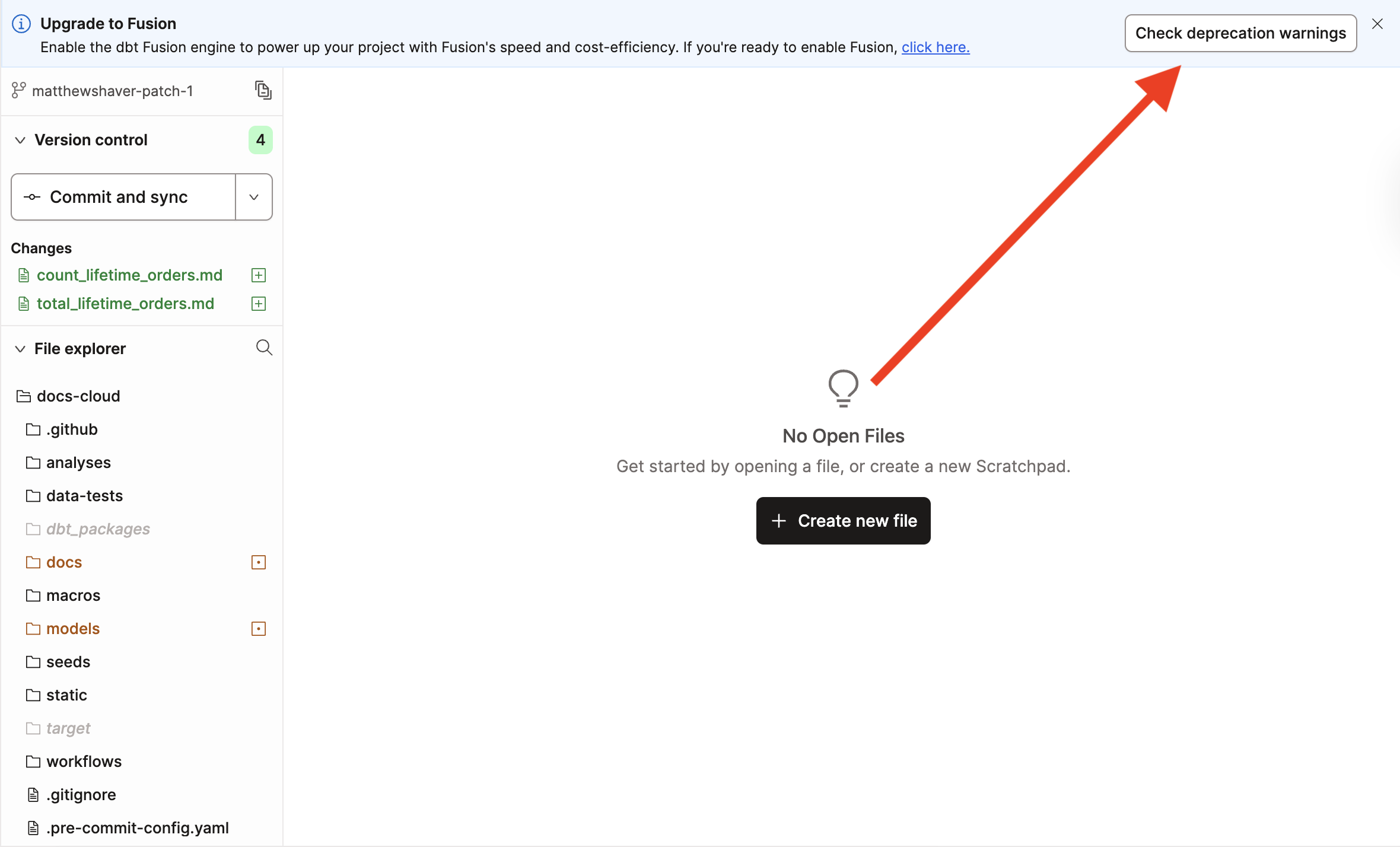 Check for deprecation warnings in your project
- Wait for the parse to complete (this may take a few moments depending on project size)
- Review the results:
- No warnings found: Skip to Step 4 to continue upgrading.
- Warnings found: Continue to Step 3 to resolve them.
Step 3: Resolve remaining deprecations
If deprecation warnings are found, use the autofix tool to resolve them:
- In the deprecation warnings list, click Autofix warnings.
- Review the proposed changes in the dialog.
- Click Continue to apply the fixes automatically.
- Wait for the autofix tool to complete and run a follow-up parse.
- Review the modified files in the Version control panel.
- If all warnings are resolved, you'll see a success message.
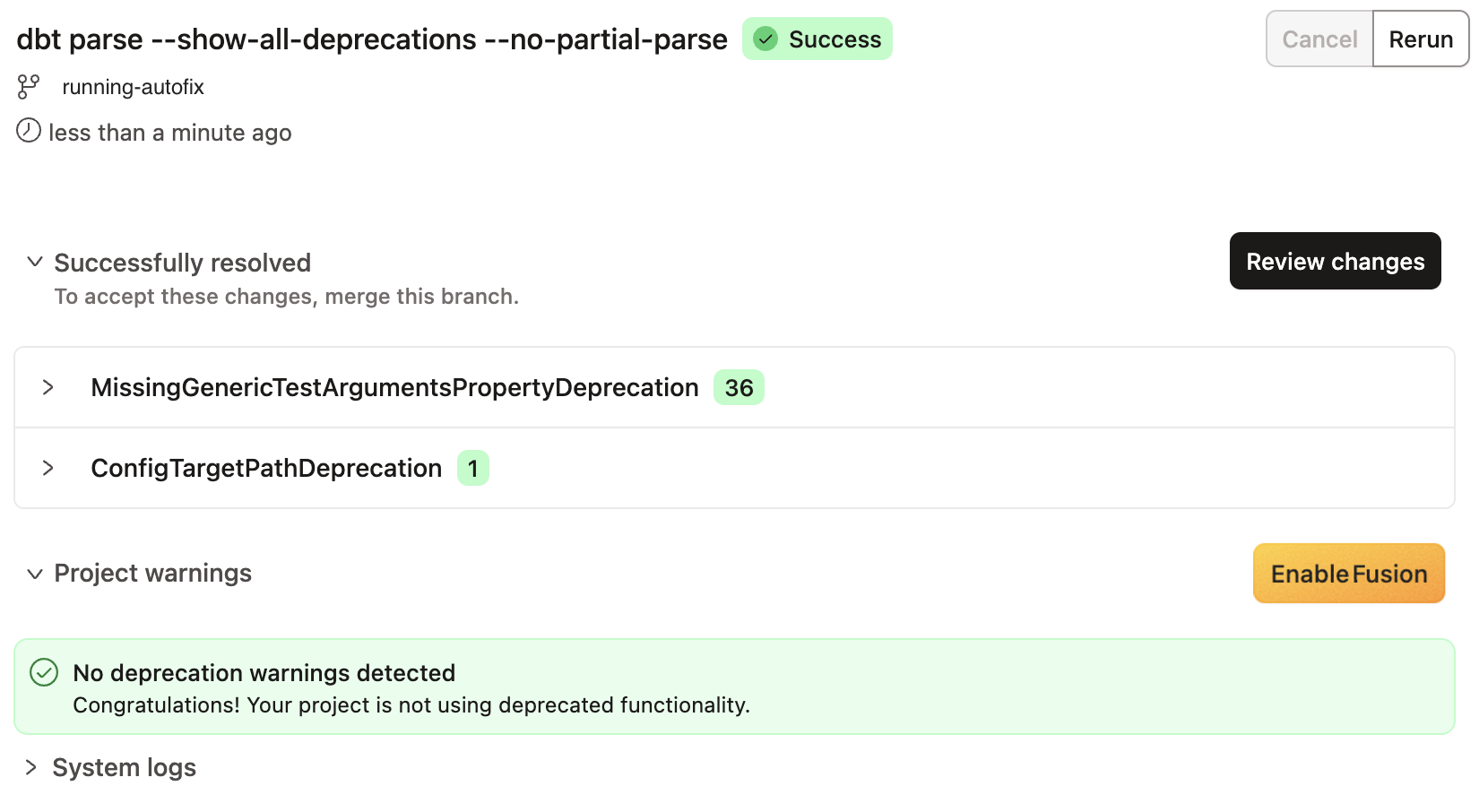 Success message when deprecations are resolved
For detailed information about the autofix process, see Fix deprecation warnings.
If the autofix tool can't resolve all deprecations automatically, you'll need to fix them manually. Review the warning messages for specific guidance, make the necessary changes in your code, then run Check deprecation warnings again.
Step 4: Enable Fusion
Once all deprecations are resolved, upgrade your development environment:
- Click the Enable Fusion button at the top of the Studio IDE.
- Confirm the upgrade when prompted.
- Wait for the environment to update (this typically takes just a few seconds).
Your development environment is now running on Fusion!
Step 5: Restart the IDE
After upgrading, all users need to restart their IDE to connect to the new Fusion-powered environment:
- If you're currently in the Studio IDE, refresh your browser window.
- Notify your team members that they also need to restart their IDEs.
Step 6: Verify the upgrade
Confirm your development environment is running Fusion:
- Open or create a dbt model file in the Studio IDE
- Look for Fusion-powered features:
- Faster parsing and compilation times
- Enhanced SQL validation and error messages
- Improved autocomplete functionality
- Run a simple command to test functionality:
dbt compile - Check the command output for significantly faster performance
Step 7: Test your workflows
Before declaring victory, test your typical development workflows:
- Make changes to a model and compile it
- Run a subset of models:
dbt run --select model_name - Execute tests:
dbt test --select model_name - Preview results in the integrated query tool
- Verify git operations (commit, push, pull) work as expected
If you encounter any unexpected behavior or have feedback about the Fusion experience, share it with your account team or dbt Support.
What about production?
Your development environment is now on Fusion, but your production environment and deployment jobs are still running on dbt Core. This is intentional — it gives you and your team time to:
- Test Fusion thoroughly in development.
- Build confidence in the new engine.
- Identify and resolve any project-specific issues.
- Train team members on any workflow changes.
When you're ready to upgrade production, you'll update your deployment environments and jobs to use the Latest Fusion release track. We'll cover that in the next section.
Upgrade staging and intermediate environments
After successfully upgrading and testing your development environment, the next step is upgrading your staging or other intermediate deployment environments. These environments serve as a critical validation layer before promoting Fusion to production, allowing you to test with production-like data and workflows while limiting risk.
Staging environments provide:
- A final validation layer for Fusion with production-scale data
- The ability to test scheduled jobs and deployment workflows
- An opportunity to verify integrations and downstream dependencies
- A safe environment to identify performance characteristics before production
What is a staging environment?
A staging environment is a deployment environment that mirrors your production setup but uses non-production data or limited access credentials. It enables your team to test deployment workflows, scheduled jobs, and data transformations without affecting production systems.
If you don't have a staging environment yet, consider creating one before upgrading production to Fusion. It provides an invaluable testing ground.
Step 1: Navigate to environment settings
Access the settings for your staging or intermediate environment:
- Log into dbt platform and navigate to your project.
- Click Deploy in the left sidebar.
- Select Environments from the dropdown.
- Click on your staging environment name to open its settings.
- Click the Edit button in the top right.
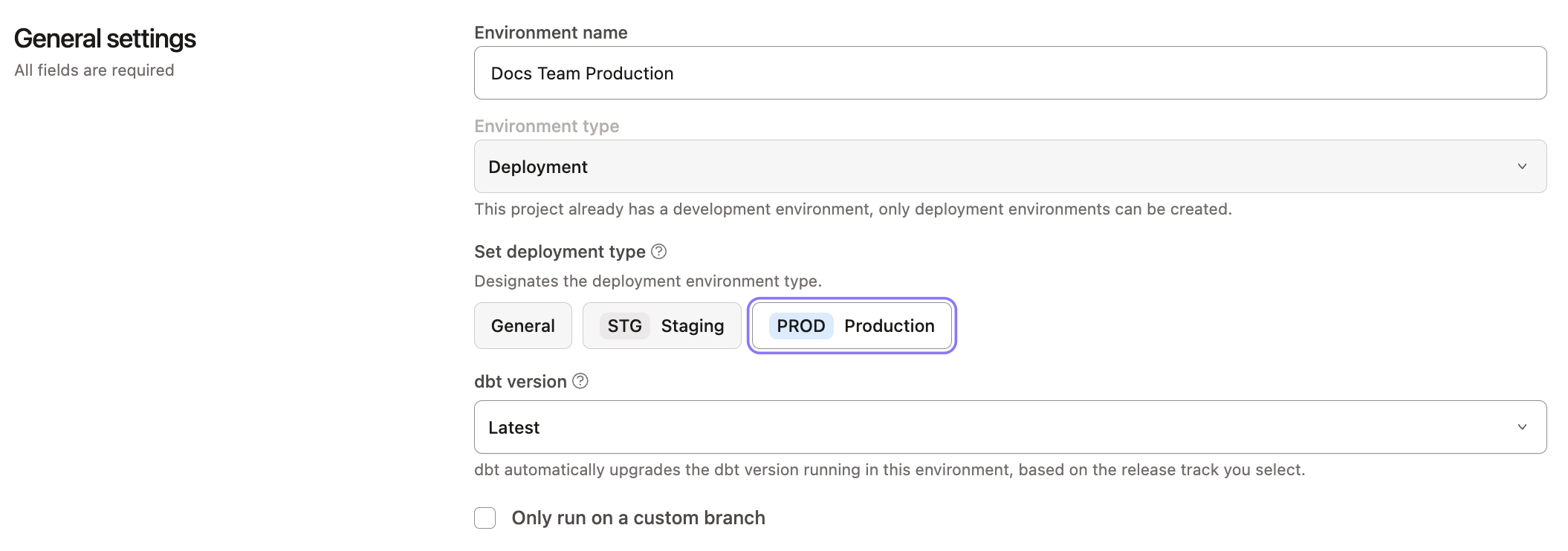 Navigate to environment settings
Step 2: Update the dbt version
Change your staging environment to use the Fusion release track:
- In the environment settings, scroll to the dbt Version section.
- Click the dbt version dropdown menu.
- Select Latest Fusion from the list.
- Scroll to the bottom and click Save.
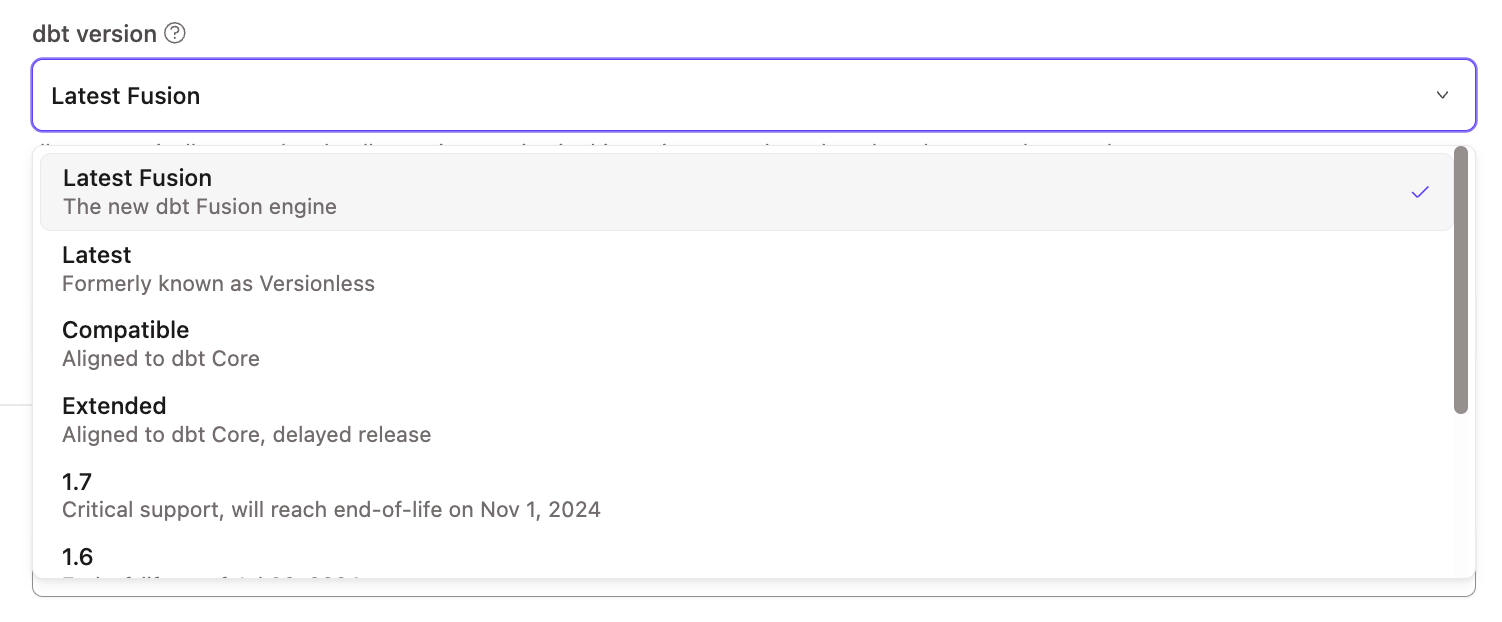 Select Latest Fusion from the dbt version dropdown
Your staging environment is now configured to use Fusion! Any jobs associated with this environment will use Fusion on their next run.
Step 3: Run a test job
Validate that Fusion works correctly in your staging environment by running a job:
- From the Environments page, click on your staging environment.
- Select an existing job or click Create job to make a new one.
- Click Run now to execute the job immediately.
- Monitor the job run in real-time by clicking into the run details.
Step 4: Monitor scheduled jobs
If you have scheduled jobs in your staging environment, monitor their next scheduled runs:
- Navigate to Deploy → Jobs and filter to your staging environment.
- Wait for scheduled jobs to run automatically (or trigger them manually).
- Review job run history for any unexpected failures or warnings.
- Compare run times to previous dbt Core runs. You should see significant improvements.
Step 5: Validate integrations and dependencies
Test any integrations or dependencies that rely on your staging environment:
- Cross-project references: If using dbt Mesh, verify downstream projects can still reference your staging models
- BI tools: Check that any BI tools or dashboards connected to staging still function correctly
- Downstream consumers: Notify teams that consume staging data to verify their processes still work
- CI/CD workflows: Run any CI jobs that target staging to ensure they execute properly
Repeat for other intermediate environments
If you encounter problems in staging:
- Review the Fusion limitations to see if it's a known issue.
- Check job logs for specific error messages.
- Test the same models in your development environment to isolate the problem.
- Contact dbt Support or your account team for assistance.
You can revert the staging environment to Latest release track while investigating.
How long should I test in staging?
The recommended testing period depends on your organization:
- Minimum: Run all critical jobs at least once successfully.
- Recommended: Monitor scheduled jobs for 3-7 days to catch any time-based or data-dependent issues.
- Enterprise/Complex projects: Consider 1-2 weeks of testing, especially if you have many downstream dependencies.
Don't rush this phase — thorough testing in staging prevents production disruptions.
Upgrade your production environment
Congratulations! You've successfully upgraded development and staging environments and you're now ready for the final step: upgrading your production environment to the dbt Fusion Engine.
Upgrading production is a critical operation. While Fusion is production ready and has been thoroughly tested in your dev and staging environments, follow these best practices:
- Plan the upgrade during a low-traffic window to minimize impact.
- Notify stakeholders about the maintenance window.
- Have a rollback plan ready (reverting to
Latestrelease track). - Monitor closely for the first few job runs after upgrading.
Step 1: Plan your maintenance window
Choose an optimal time to upgrade production:
- Review your job schedule: Identify periods with minimal job activity.
- Check downstream dependencies: Ensure dependent systems can tolerate brief interruptions.
- Notify stakeholders: Inform BI tool users, data consumers, and team members.
- Document the plan: Note which jobs to monitor and success criteria.
Step 2: Navigate to production environment settings
Access your production environment configuration:
- Log into dbt platform and navigate to your project.
- Click Deploy in the left sidebar.
- Select Environments from the dropdown.
- Click on your production environment (typically marked with a Production badge).
- Click the Edit button in the top right.
Access production environment settingsStep 3: Upgrade to Latest Fusion
Update your production environment to use Fusion:
- In the environment settings, scroll to the dbt Version section.
- Click the dbt version dropdown menu.
- Select Latest Fusion from the list.
- Review your settings one final time to ensure everything is correct.
- Scroll to the bottom and click Save.
Select Latest Fusion for productionYour production environment is now running on Fusion!
Step 4: Run an immediate test job
Validate the upgrade by running a job:
- From the Environments page, click on your production environment.
- Select a critical job that covers a good subset of your models.
- Click Run now to execute the job immediately.
- Monitor the job run closely:
- Check the parse and compile steps.
- Verify all models build successfully.
- Confirm tests pass as expected.
- Review the logs for any unexpected warnings.
If the job succeeds, your production upgrade is successful!
Step 5: Enable state-aware orchestration (optional but recommended)
One of Fusion's most powerful features is state-aware orchestration, which automatically determines which models need rebuilding based on code or data changes. This can reduce warehouse costs by 30% or more.
New jobs automatically have state-aware orchestration enabled in Fusion environments.
To enable it for existing jobs:
- Navigate to Deploy → Jobs.
- Click on a production job to open its settings.
- Click Edit in the top right.
- Scroll to Execution settings.
- Check the box for Enable Fusion cost optimization features.
- Expand More options to see additional settings:
- State-aware orchestration
- Efficient testing
- Click Save.
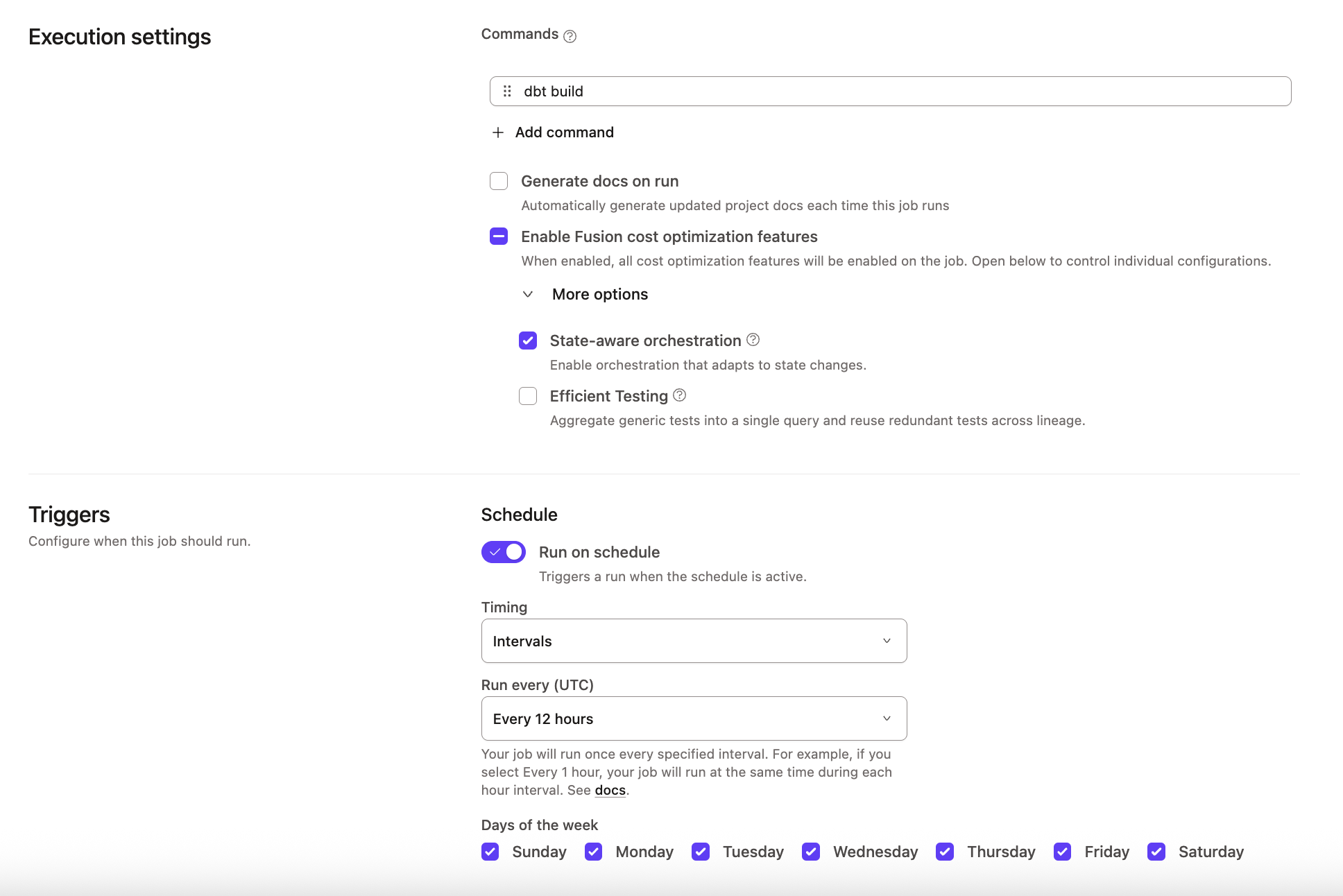 Enable Fusion cost optimization features
Repeat this for all production jobs to maximize cost savings. For more details, see Setting up state-aware orchestration.
Step 6: Monitor production jobs
Watch your production jobs closely for the first 24-48 hours:
- Check scheduled job runs: Navigate to Deploy → Jobs → Run history
- Monitor run times: Compare to historical averages. You should see significant improvements.
- Review the state-aware interface: Check the Models built and reused chart to see cost savings in action.
- Watch for warnings: Review logs for any unexpected messages.
With state-aware orchestration enabled, you'll see models marked as Reused in the job logs when they don't need rebuilding. This is expected behavior and indicates cost savings!
Step 7: Validate downstream integrations
Ensure all systems dependent on your production data still function correctly:
- BI tools: Verify dashboards and reports refresh properly.
- Data consumers: Confirm downstream teams can access and query data.
- APIs and integrations: Test any applications that consume dbt outputs.
- Semantic Layer: If using the dbt Semantic Layer, verify metrics queries work.
- Alerts and monitoring: Check that data quality alerts and monitors function correctly.
Step 8: Update any remaining jobs with version overrides
Some jobs might have version overrides set from earlier testing. Now that production is on Fusion, remove these overrides:
- Navigate to Deploy → Jobs.
- Review each job's settings.
- If a job has a version override (showing in the dbt Version section), click Edit.
- Remove the override to let the job inherit the environment's Fusion setting.
- Click Save.
Rollback procedure
If you encounter critical issues in production, you can revert your dbt version:
- Navigate to Deploy → Environments → Production.
- Click Edit.
- Change dbt Version from Latest Fusion back to Latest.
- Click Save.
- Jobs will use dbt Core on their next run.
Rolling back to Latest will disable Fusion-specific features like state-aware orchestration. Only rollback if you're experiencing production-critical issues.
Next steps
🎉 Congratulations!
You've successfully upgraded your entire dbt platform project to Fusion! Your team can now benefit from:
- ⚡ Up to 30x faster parsing and compilation
- 💰 30%+ reduction in warehouse costs (with state-aware orchestration)
- 🔍 Enhanced SQL validation and error messages
- 🚀 State-aware orchestration for intelligent model rebuilding
- 🛠️ Modern development tools
For your next steps:
- Optimize further: Explore advanced state-aware configurations to fine-tune refresh intervals.
- Monitor savings: Use the state-aware interface to track models built vs. reused.
- Train your team: Share Fusion features and best practices with your team.
- Explore new features: Check out column-level lineage, live CTE previews, and other Fusion-powered capabilities.
- Stay informed: Follow the Fusion Diaries for updates on new features.
We'd love to hear about your Fusion upgrade experience! Share feedback with your account team or join the dbt Community Slack to discuss Fusion with other users.
Was this page helpful?
This site is protected by reCAPTCHA and the Google Privacy Policy and Terms of Service apply.